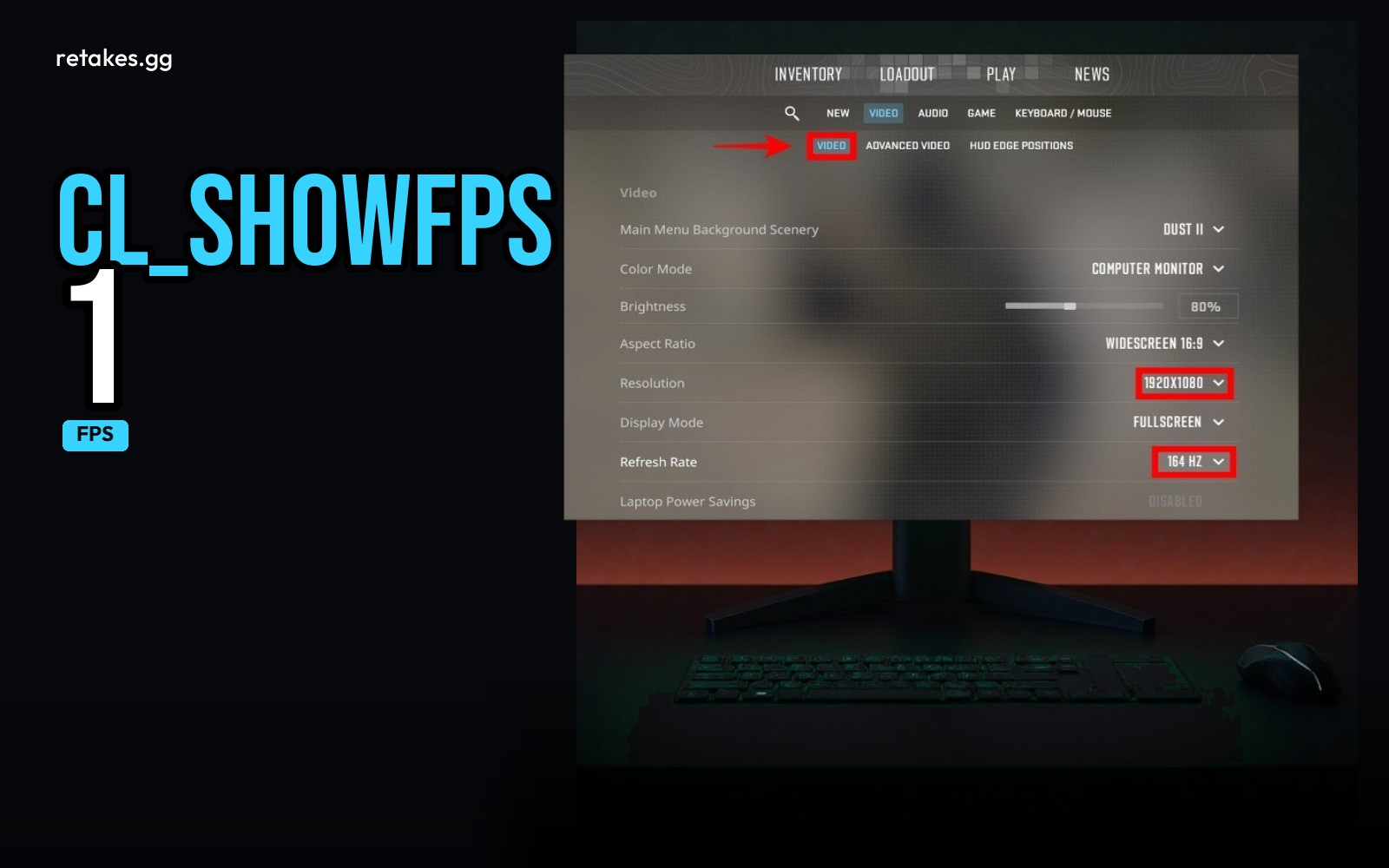
To show your FPS in CS2, you can either enable the in-game command `cl_showfps 1` or use the Steam overlay FPS counter. Understanding your FPS helps you fine-tune your performance, and capping your frame rate just above your monitor's refresh rate can lead to a smoother experience than letting it spike.
This guide covers the commands, what they mean, and how to get the most consistent frame times possible.
| Command | Use | Notes |
|---|---|---|
| cl_showfps 1 | Shows FPS in-game | Type in console to enable |
| cl_showfps 0 | Hides FPS in-game | Type in console to disable |
| cl_showfps 2 | Shows network info only | Useful for checking latency |
| cl_showfps 3 | Shows net graph and FPS | Advanced networking info |
| Steam FPS Counter | Overlay on Steam | Enable in Steam settings > In-Game > FPS Counter |
| +fps_max N | Caps your FPS | Replace N with your monitor's refresh rate + 10–20 |
Use the console (press ~) to type these commands.
How to Enable cl_showfps 1 and Steam Overlay FPS
01
Open Developer Console
Press the ~ key to open the console. If it doesn't open, enable it in Steam > Settings > In-Game > Enable the Developer Console.
02
Type cl_showfps 1
In the console, type `cl_showfps 1` and press Enter to show your FPS in-game.
03
Enable Steam FPS Counter
Open Steam > Settings > In-Game. Check the box next to 'Display FPS counter'.
04
Check the FPS
You'll now see the FPS counter on screen either via the console or the Steam overlay.
05
Cap FPS if Desired
To cap FPS, type `+fps_max 144` in the console (replace 144 with your monitor's refresh rate).
Why FPS Matters and Why Capping Helps
FPS (frames per second) is the number of times your game updates the screen each second. Higher FPS isn't always better — if it's spiking too high, it can cause input lag or look jittery on some monitors.
Capping FPS just above your monitor's refresh rate (e.g., 144 for a 144Hz monitor) can smooth out frame times and reduce input latency. This is why pros often cap their FPS even if they're capable of higher numbers.
What is cl_showfps 1 used for?+
cl_showfps 1 is a console command that displays your current FPS in the top-left corner of the screen. It's useful for monitoring performance and adjusting settings.
Is the Steam FPS counter reliable?+
Yes, the Steam FPS counter is reliable and works across most games, including CS2. It overlays the FPS on the screen in real time.
Should I cap my FPS if my monitor is 144Hz?+
Capping at 144 or a bit higher (e.g., 165) can help reduce input lag and smooth out frame times. Try it and see if it feels better for you.
Can I use cl_showfps in ranked matches?+
Yes, cl_showfps is allowed in ranked matches. It's just a visual overlay and doesn't affect gameplay.
Once your settings are stable and your FPS is consistent, head to retakes.gg to play CS2 retakes in Europe. The site lists six ranked lobbies, live player counts, and a shared leaderboard. Join from https://retakes.gg/servers or https://retakes.gg/join.
Sources
- retakes.gg servers · 2026-11-02
- Counter-Strike 2 on Steam · 2026-11-02